
The useful question is whether you can resume the work that matters. A restored wallpaper and a familiar app icon can coexist with a missing project. Check the file, the program and the data the program needs as separate parts of the recovery.
The short answer
Prove that the work can return
A useful backup must cover the things your next working session needs.
- Verify the filesCheck which folders actually uploaded, including files outside the standard folders.
- Prepare the programsTreat an app list as a route to reinstalling software, not a saved installation.
- Check the restored workKeep the old PC or another verified copy until important files and programs work on the replacement.
What each part of Windows Backup brings back
This guide covers the consumer Windows Backup app. Microsoft's setup and restore instructions require a personal Microsoft account; the described consumer flow does not accept a work or school account. Folder uploads use OneDrive storage, so available capacity matters.
Folders. What it can preserve: Selected Desktop, Documents, Pictures, Videos and Music folders through OneDrive. What to check separately: Downloads, custom project locations, other drives and anything that failed to upload.
Apps. What it can preserve: The installed-app list and restored app pins. What to check separately: Installers, licences, compatibility, local databases and application-specific exports.
Settings. What it can preserve: Supported preferences selected for backup. What to check separately: Settings inside individual programs and options absent from the backup catalogue.
Credentials. What it can preserve: Supported saved information, including Wi-Fi-related credentials. What to check separately: Actual access to important accounts, password-manager recovery and device-bound credentials.
The detailed Windows Backup settings catalogue is useful when a particular setting matters. It lists such items as accessibility choices, language preferences, desktop appearance and the app list. That is a defined selection of settings, not a promise to reproduce every application state.
Set up the backup and check the actual files
Open Windows Backup from Start, confirm the personal account and expand the folder selection. Choose the folders and settings you want to retain, then select Back up. Resolve storage or sync errors rather than leaving them for the new PC.
For the file check, open OneDrive in a browser with that same account. Find a recently changed document and open it. Repeat for one important item from each location you intended to protect. Record where it lives, which version you saw and anything still missing.
A short location list prevents a common omission. Someone may keep invoices in Documents, large video projects on another drive and downloaded statements in Downloads. Selecting Documents does not establish that the other two locations are protected. Search for the work you would regret losing, rather than assuming a folder label describes everything you own.
Files visible on the PC can also be online-only. If you need a separate offline copy before the move, use the OneDrive availability and copy checks to distinguish actual downloaded contents from placeholders.
Restore the environment, then reinstall and verify
During initial setup of a new or reinstalled PC, sign in with the same Microsoft account and choose the relevant backup when offered. After setup, sign in to OneDrive to reach the uploaded folders.
Microsoft describes restoring app pins: selecting a Microsoft Store app's pin starts its installation, while other apps may lead you to their installer on the web. A returned icon therefore does not prove the application or its working data has already been restored.
Install important programs from their official sources, regain access to their accounts and open actual projects. If an application has its own backup or export function, restore that through the application's supported process. Copying an installation folder is not a substitute for knowing how that particular program stores and restores its data.

Use a three-part recovery check for each important task
Consider a hypothetical home-office PC with a budget spreadsheet, a locally stored bookkeeping database and an editor used for client work. The following is a planning example, not a measured restore test.
Update the budget. Evidence to collect before the move: The latest spreadsheet opens from its retained copy; the required editor is available. Evidence that recovery worked: The replacement PC opens and saves a separate test copy correctly.
Continue bookkeeping. Evidence to collect before the move: An application-supported database export, its restore instructions and account or licence access are available. Evidence that recovery worked: The restored program opens the expected database and its recent records.
Edit a client project. Evidence to collect before the move: The project, linked media, required assets and installer/account details have been retained. Evidence that recovery worked: The project opens with its dependencies present, rather than only its main filename.
The reasoning is simple: a document, an installer and application data solve different parts of the problem. A list of programs tells you what to obtain. It does not tell you where the last working database was stored, whether linked media uploaded, or whether a licence can be reactivated.
Use the same distinction for accounts. Test that you can sign in from another trusted device while you still have the old one available. Our passkey and account-recovery guide explains why the place a credential is stored affects how you regain access. Do not record passwords, recovery codes or encryption keys in a public checklist.
Cover locations that the app does not include
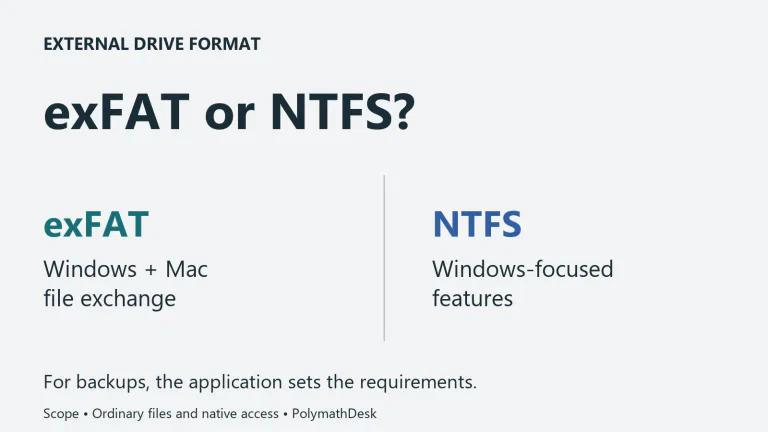
For files outside the selected folders, make another explicit copy. Microsoft's external-storage transfer guide describes copying files to a drive, checking the destination and safely ejecting it. Copy first so that a failed transfer does not become the loss of the original.
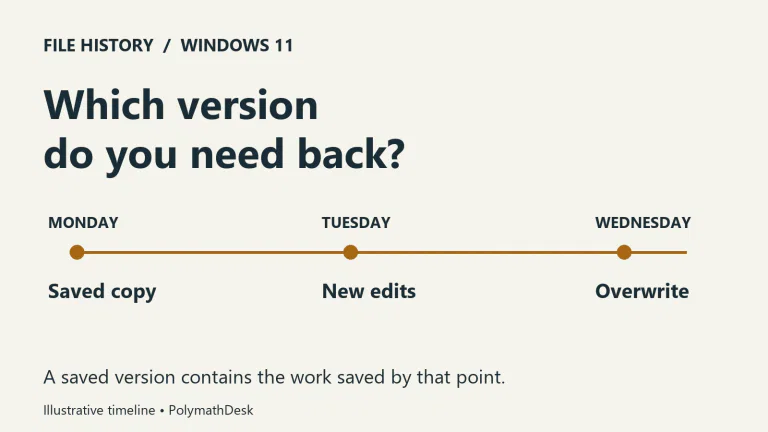
For ongoing file versions, File History can back up libraries to an external drive or network location. Additional folders can be included through libraries. Verify the actual backup and try restoring a file to another location; merely having a drive plugged in does not demonstrate coverage.
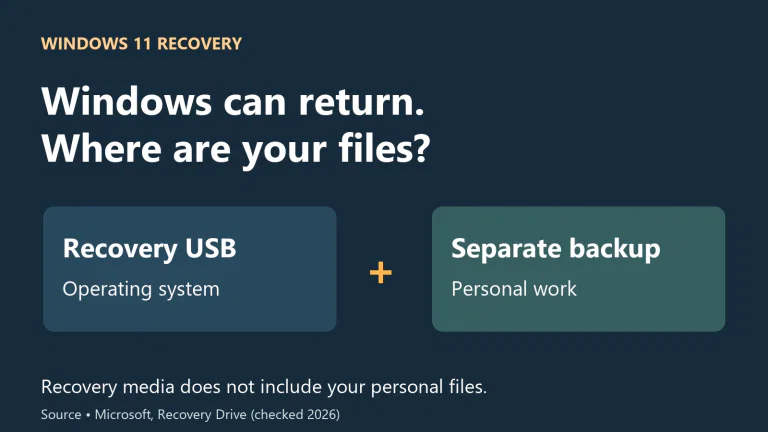
Neither method should be mistaken for a ready-to-boot copy of every part of the PC. If that is your requirement, it is a separate recovery design with its own restore procedure and test. The Windows Backup app's scope does not satisfy it by itself.
If the old PC is unavailable or setup is already finished
If the old PC has failed, start with what was saved before the failure. Sign in to the correct OneDrive account and inspect the available folders. Missing local-only files cannot be uploaded retrospectively by selecting a new backup option on another computer.
If you have already completed setup on the replacement, you can still access OneDrive files and reinstall your programs. Do not reset a working, newly configured PC just to chase a setup screen without first identifying what you would gain and what you would remove. Check the consequences of Keep my files before considering that route.
If the old disk is encrypted and access is blocked, locate the matching BitLocker recovery key. A cloud backup and an encryption key serve different purposes: one may contain copies; the other unlocks the original encrypted data.
Ignore obsolete PC-to-PC pairing instructions
Microsoft's current PC-to-PC transfer page carries a notice that the feature is no longer available, even though older pairing instructions remain below it. Do not spend time searching for that retired transfer option or apply its old encrypted-drive instructions to a cloud restore.
Use the current Windows Backup restore flow for saved account data, and a verified file copy for material outside it. Keep the original until the new PC can perform the tasks you identified. That is the point at which the migration has produced a usable result.
Method: Microsoft documentation checked on October 30, 2026. This is a document-based recovery guide with an illustrative checklist, not a claim of a fresh full-PC restore experiment.