The drive’s job matters more than whether its casing says HDD, SSD or USB. A disk that a Mac can read may still refuse new files. A filesystem with a journal is still only one copy of your work. This is a comparison of documented capabilities, not a speed benchmark or a measured failure-rate study.
The short answer
Choose for access first, then for the backup job
Start with the result you need.
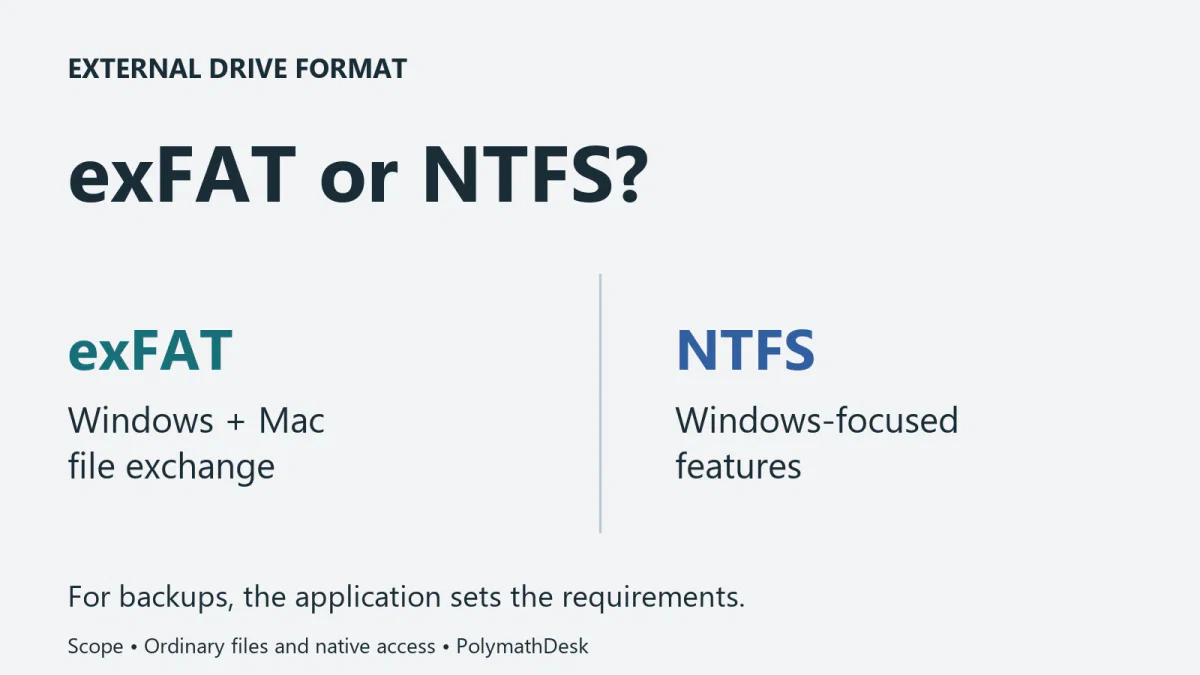
- Windows and Mac transfersexFAT supports an ordinary shared file exchange.
- Windows-focused storageNTFS adds Windows features; it is not an independent backup.
- Time MachineUse Apple’s supported backup format, normally APFS for a new directly attached disk.
Reading a drive is not the same as writing to it
Apple’s external-drive troubleshooting guide explains that a Mac may read an NTFS drive without being able to write to it. Seeing the existing files therefore does not prove you can edit a document and save it back. Apple lists exFAT among its Windows-compatible Disk Utility formats.
For a transfer drive, check the complete task on both computers: copy a small non-sensitive test file onto the drive, open it on the other machine, save a separate changed copy there and read that copy back on the first machine. Keep the originals elsewhere. This is a proposed compatibility check for your devices, not a test claimed to have been performed here.
Other devices need their own check. A television, camera or console can impose format, capacity, folder and media-codec requirements. Do not extend a Windows-and-Mac recommendation into a claim that every device accepts exFAT. Read the manual for the exact model.
What NTFS adds and what a journal cannot do
Microsoft’s filesystem comparison lists metadata journaling, access control lists, file-level encryption and compression for NTFS, but not exFAT. Both can hold files beyond FAT32’s familiar roughly 4 GiB single-file limit; choosing between these two is not mainly a way around that FAT32 restriction.
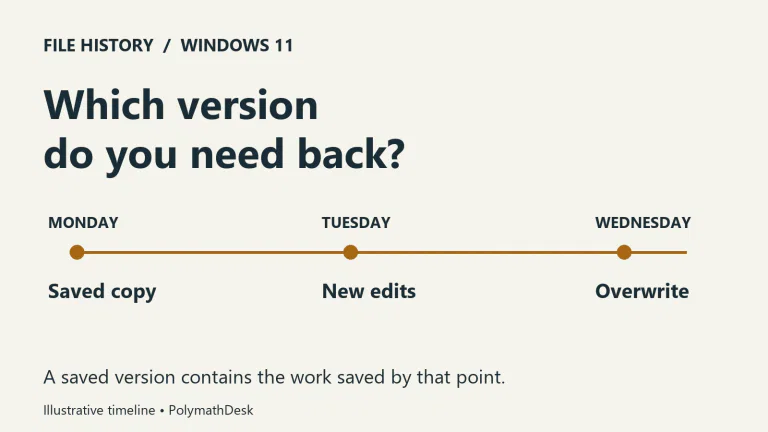
A metadata journal helps recover filesystem consistency after an interruption. Microsoft’s NTFS overview describes replaying its transaction log after a failure. That is different from preserving last week’s report, recreating a deleted photo or surviving theft of the whole device. A consistent filesystem can still contain the wrong version of your document.
Use the normal eject process and let writes finish with either format. Choose an independent, verified backup for important data. A claim that one format is “safer” is incomplete unless it names the failure being discussed: interrupted metadata updates, accidental deletion and a lost drive are different problems.

Encryption is a separate decision
Do not conclude that exFAT can never be encrypted just because it lacks NTFS file-level encryption. Microsoft’s BitLocker FAQ explicitly lists exFAT among the filesystems supported by BitLocker To Go on removable data drives. File-level encryption and whole-volume encryption are different mechanisms.
Equally, formatting a drive as NTFS does not itself turn encryption on. If confidential data must travel between machines, verify the encryption tool’s supported platforms, unlock method and recovery process. Do not assume that an encrypted exFAT volume remains as convenient to open everywhere as an unencrypted exFAT volume.
A backup application can overrule the general recommendation
For a new directly attached Time Machine destination, Apple prefers APFS or APFS Encrypted. Its guide says a Windows-formatted disk cannot be used directly as that backup destination and may need to be erased and reformatted. Older supported Time Machine backups and network destinations have their own arrangements; they do not make exFAT the default for a new local Time Machine disk.
This creates a practical distinction. A photographer may use exFAT to deliver exported files to a Windows client, then use a separate APFS disk for the Mac’s Time Machine backup. Those are different jobs. Making one drive convenient for transfers does not establish that it is suitable for the backup software.
For a Windows backup destination, confirm the chosen program’s filesystem support and restore process before formatting. Our NAS-versus-external-drive comparison addresses where storage lives; the filesystem question concerns how the directly attached volume is organized. Shared storage accessed over a network adds another layer and should be checked against its service documentation.
Check the current format before changing anything
On a Mac, select the drive in Finder and open Get Info to inspect Format. On Windows, inspect the volume’s Properties in File Explorer. Confirm the drive label and capacity as well as the letter, especially when several similar devices are connected.
If the current format already supports the job, you may have no reason to change it. If you do reformat, treat that as destructive: Microsoft warns that formatting destroys data on the selected partition. First copy the wanted files elsewhere and verify them there; preserve the working original until the transfer has been checked.
Avoid formatting as a troubleshooting response to missing files. That is a recovery problem, not a format-selection problem. Our deleted-file recovery guide explains why unnecessary writes and the wrong destination can make matters worse.
Make the choice for the next real task
For exchanging ordinary files between your Windows PC and a Mac, start with exFAT and verify a round trip. For Windows-focused storage that benefits from NTFS features, use NTFS if the application supports it. For a dedicated backup, follow the backup tool’s supported format and prove a restore.
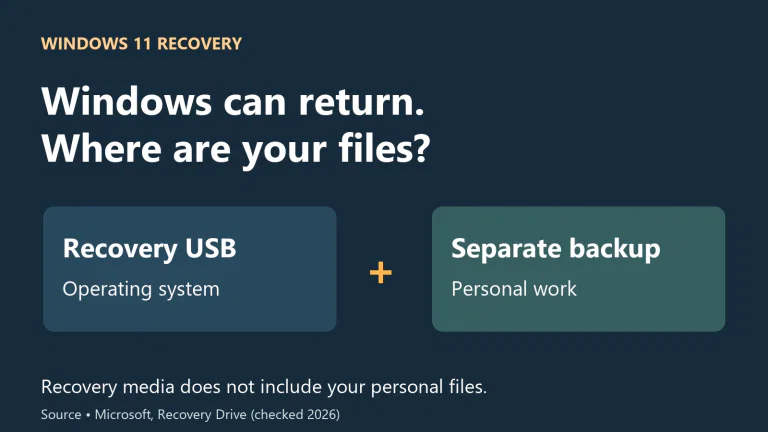
Keep a separate copy regardless of the choice. The filesystem answers how this volume works; a backup plan answers what remains when this volume is unavailable.