The important distinction is between finding a filename and finding the version you need. A backup from before yesterday’s edits may be useful after an accidental overwrite, but it cannot contain work completed after that backup. This guide follows Microsoft’s documented procedure; the examples below are hypothetical, not results from a recovery experiment.
The short answer
Keep the current copy while checking the old one
Start with the result you need.
- Coverage firstConfirm the real folder is included and a backup completed.
- Restore separatelyOpen the saved version and compare it before replacing anything.
Set up File History for the folders you actually use
Connect a suitable external drive or accessible network destination. In Control Panel → System and Security → File History, select the destination and turn the feature on. Microsoft’s File History instructions also explain adding a folder through Show more options → Include in library.
Do not judge coverage from a familiar folder name alone. Write down the actual path of one important document, one photo folder and any project kept elsewhere. Check that those locations are included. Then inspect a completed backup for a recently changed file. This is a more useful acceptance check than simply seeing that a drive is connected.
Microsoft’s backup overview describes periodic copies to external or network storage. That means there can be a gap between an edit and its next saved version. Choose a backup routine and retained history that fit how much work you can afford to repeat; a week-old recoverable copy cannot meet a one-day requirement.
Preview a version and restore it somewhere else
Reconnect the backup destination. In File Explorer, go to the original location of the file or the folder that contained a deleted file. Open its Restore previous versions command, choose a dated version and preview it through Open in File History. Use Restore to… to choose another destination. A direct restore replaces the current version; Microsoft warns that this replacement cannot be undone.
For example, create a separate folder called Recovered-review on a suitable destination. Open the recovered document from that folder and check a recognizable paragraph, sheet or photograph. Keep the current file until you have decided which content to retain. If both versions contain useful changes, reconcile them in the application instead of assuming one should replace the other.

A saved version is a date, not a guarantee of completeness
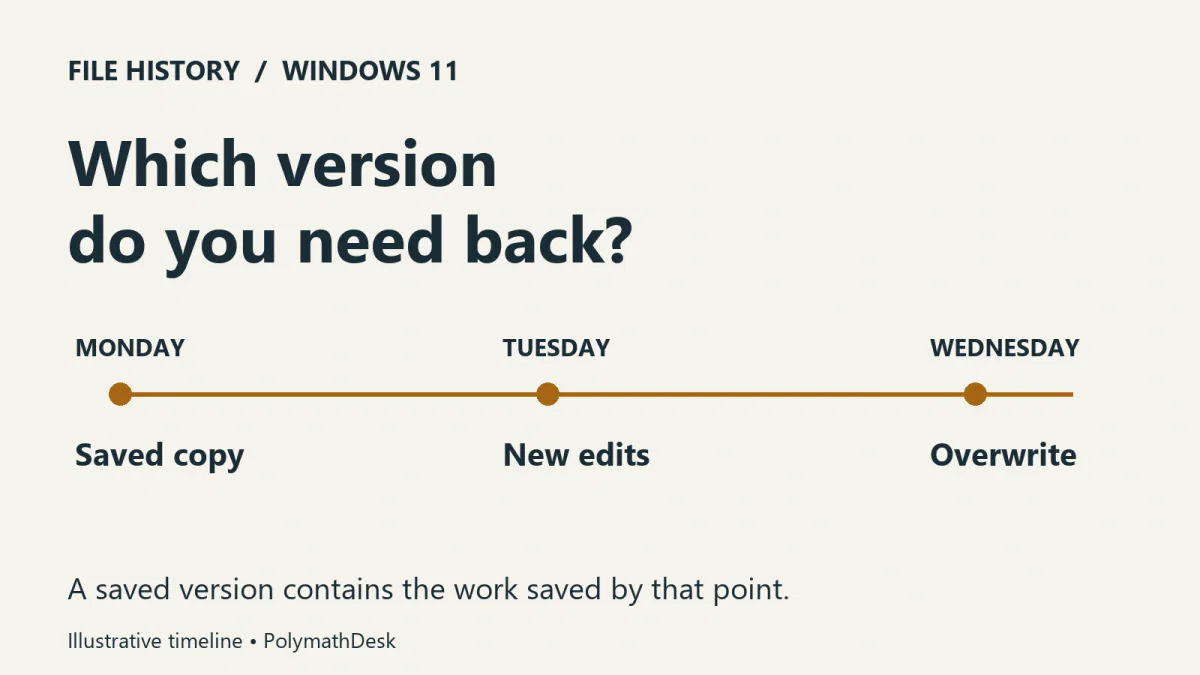
Consider a hypothetical report with a good backup from Monday, useful edits on Tuesday and an accidental overwrite on Wednesday. Monday’s copy removes the Wednesday mistake, but it also lacks Tuesday’s work. The best outcome may be to recover Monday’s structure and combine it with material still available in an email attachment or another saved draft.
Check dependencies as well as the main file. A restored presentation can still need linked video; a project can refer to assets in another directory. Inspect a representative working task rather than accepting the recovered filename as proof that everything is back.
What an empty Previous Versions list means
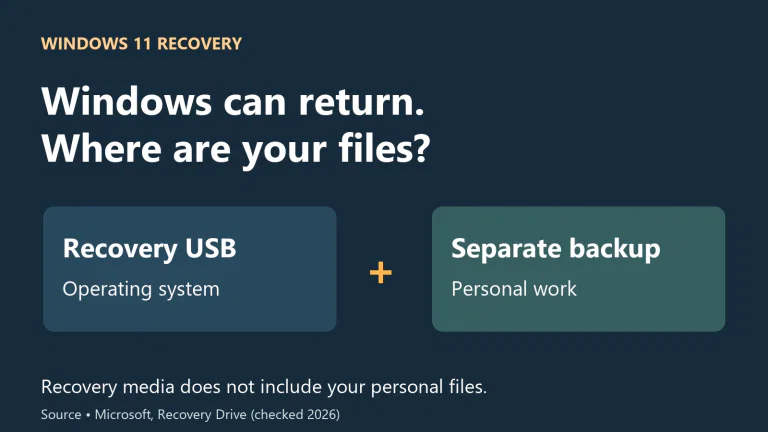
No File History backup existed before the incident. Enabling it now protects future versions. It does not supply a missing historical copy. Look for an existing independent backup or another copy of the work.
The wrong location or destination is being checked. A Documents folder under OneDrive may not be the local Documents path you expected. Check the exact original path, included library and available backup destination. Do not reset the configuration or delete the backup folder as a first troubleshooting step.
The required date is absent. The available history may start later than the edit you need or may no longer retain that version. Read the dates that actually exist. An empty list is not proof that every other recovery route has failed.
Check cloud history separately from local history
For a file stored in OneDrive, OneDrive Version history is a different source of older copies. Open the service with the correct account and inspect the available file versions. Do not expect an empty Windows list to describe what the cloud service retained.
Online-only items also need care: Files On-Demand can show a file without downloading its contents. If you intend to include cloud files in a local backup, make the intended files available locally and verify that the backup actually contains them. Our OneDrive storage guide explains the difference between a placeholder and an offline copy.
If no usable saved copy exists and the file was deleted from local storage, Windows File Recovery is a separate, uncertain recovery attempt. Avoid unnecessary writes to the affected storage; do not confuse that scan with restoring a known backup.
Prove the next restore before relying on the backup
Once coverage is configured, make a harmless test document in an included folder. After a backup has completed, change the test document, then inspect the retained version and restore it elsewhere. This is a suggested check for your own setup, not a test reported as performed here. Leave real work untouched.
Record the folder, saved version and destination you successfully opened. Repeat the coverage check when you move work to another location. File History can form the versioned local part of a broader backup plan; it does not by itself make every file, device and account recoverable.