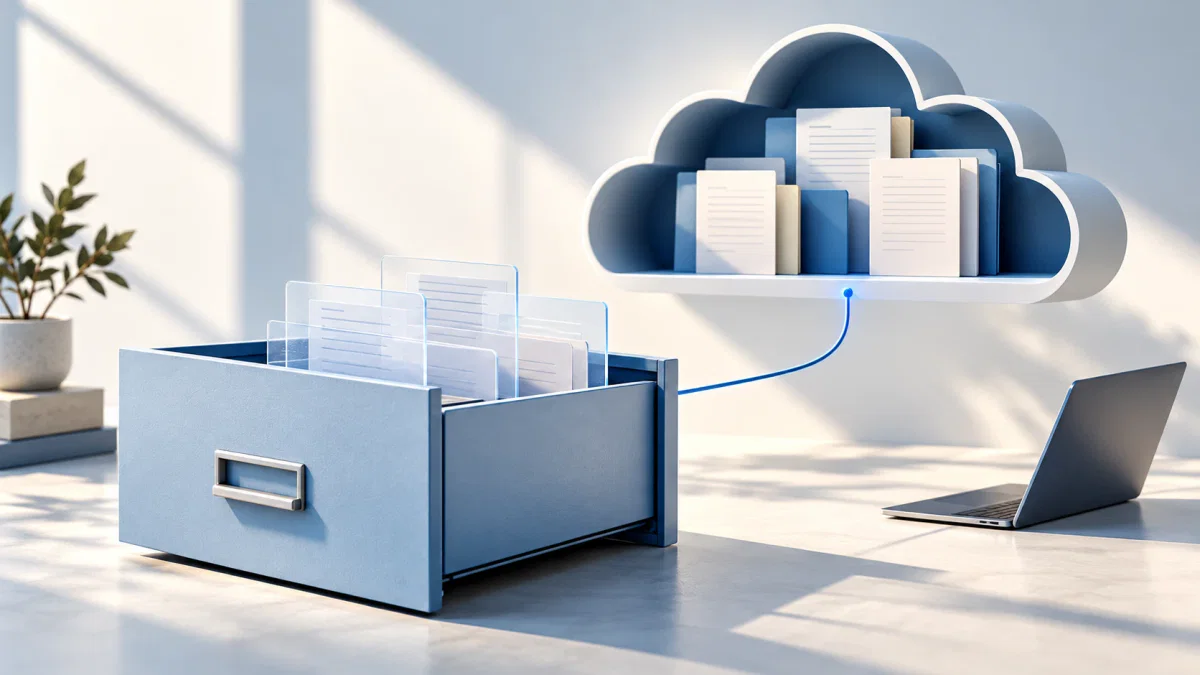
First check which storage is full. Free up space addresses your computer's disk. It does not reduce your OneDrive cloud storage. That distinction decides both the right action and where to check whether it worked.
The short answer
Keep the right copy
Choose the storage location you want to change before acting.
- Reclaim local spaceFree up space removes a local download; the cloud file remains.
- Check offline needsAn online-only item still appears in File Explorer, but needs a connection to open.
- Verify another copyKeep a separate, verified copy of irreplaceable files before changing their only storage location.
Choose the action by the copy you want to keep
OneDrive presents cloud files inside an ordinary-looking folder. That makes two very different operations look deceptively similar: removing the downloaded contents and deleting the file itself. Microsoft's Files On-Demand guide explains the difference through availability states.
Reclaim PC disk space, retain cloud files. Appropriate action: Free up space. Result to expect: Online-only items remain visible.
Use a file without internet access. Appropriate action: Always keep on this device. Result to expect: The contents download and occupy local space.
Hide an eligible synced folder on this PC. Appropriate action: Choose folders in OneDrive settings. Result to expect: The folder disappears locally and remains online.
Reduce cloud storage while preserving a file elsewhere. Appropriate action: Make and verify an independent copy before deleting the cloud item. Result to expect: The retained copy must live outside the syncing location.
Reducing cloud storage is a different job. It is the same distinction that matters when clearing full iCloud storage: making something online-only saves device space, while removing it from the cloud changes the collection you retain.
Check the cloud copy before freeing local space
Start with one completed, nonessential file rather than an entire working folder. Open OneDrive on the web using the same account as the PC. Locate that exact item and check its name, modified time and contents. A similar filename or an older version is not enough.
On the PC, check the OneDrive activity panel for an upload still in progress or an error. Resolve that before treating the cloud as the current copy. If several accounts are connected, inspect which OneDrive folder contains the file; a personal account and an organisation's account are separate destinations.
This is a verification procedure you can perform on your own files, not a claim that we uploaded or deleted a test file on your behalf. Its purpose is to establish what already exists online before you remove the downloaded contents.
Use Free up space, then check both locations
1. Open the synced location. In File Explorer, find the file inside the relevant OneDrive folder. A similarly named file elsewhere on the PC is not necessarily synced.
2. Change its availability. Right-click and choose Free up space. A blue cloud indicates an online-only item. An outlined green check indicates a locally available item; a solid green circle with a white check identifies one marked to stay on the device.
3. Confirm the cloud item remains. Refresh the OneDrive website and check the same file. Its continued presence in File Explorer alone proves little: online-only placeholders are meant to remain there.
4. Check the space reclaimed before opening it again. Opening an online-only file downloads it. If you immediately open the item on the PC to test it, you can reverse the space saving you are trying to measure. Use the website to check its contents at this stage.

Why Size may stay large after the download is removed
Right-click the item, open Properties and compare Size with Size on disk. The first describes the file's contents; the second helps you see what is allocated locally. Microsoft documents this difference, including placeholders and measurement differences between storage utilities.
Record the values before and after the operation and also check the drive's available space. Do not expect a folder's advertised total to become zero, or every measurement to match byte for byte. If most items were already online-only, there was little downloaded content to reclaim.
Choose folders and Stop backup change different things
Choose folders, under OneDrive Settings → Account, controls which eligible folders appear on this computer. Unchecking one removes it locally while retaining it online. Microsoft lists restrictions for important folders such as Desktop, Documents, Pictures and Personal Vault; do not assume every folder can be unchecked.
Stop backup is a separate decision. Microsoft's current Windows folder-backup instructions describe choices to keep the files only in OneDrive or only on the PC. The latter removes them from OneDrive. Read the actual choice shown before accepting it; this is more consequential than changing a downloaded file to online-only.
If you only need laptop disk space, start with Free up space. You do not need to reorganise Desktop backup or disconnect the whole account to achieve that.
Unlinking is not an independent backup
Unlink this PC disconnects its local OneDrive folders from the account. It is useful for connection and sync changes, but it does not establish that every online-only file has become a complete offline copy. Re-linking can resume synchronisation, including changes made while disconnected.
If your aim is an independent archive, download the files you need and copy them to storage outside the OneDrive folder. Open the destination files and check that they are usable before deleting anything. A move out of OneDrive is different from a copy: Microsoft's Files On-Demand documentation says moving an item outside the folder removes it from OneDrive.
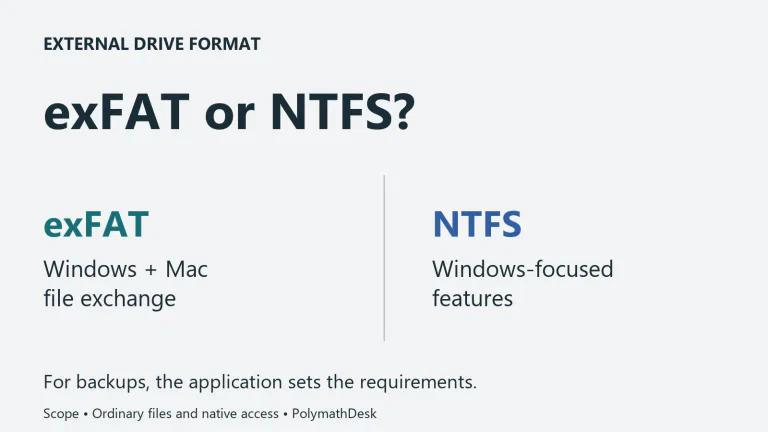
An external drive can serve this role, provided it contains the real files and is checked. Our SSD-versus-HDD guide explains the capacity and access-speed trade-offs; neither type protects a file that was never copied successfully.
Keep the files you need offline available
Before travelling or working without a connection, select Always keep on this device for the relevant files and let their downloads finish. Verify that they open offline. A folder visible in Explorer is not by itself evidence that its contents are ready for that trip.
Storage Sense can make unused downloaded OneDrive files online-only; items marked to stay on the device are excluded from that treatment. Review its cloud-content settings if files repeatedly change availability. Menu wording varies with Windows and OneDrive versions.
If you pressed Delete instead
Check the OneDrive website's Recycle bin and select the item to restore. Microsoft's recovery instructions give personal accounts a 30-day retention window; work or school retention normally differs and can be changed by administrators. Permanently deleted recycle-bin items cannot be restored through that bin.
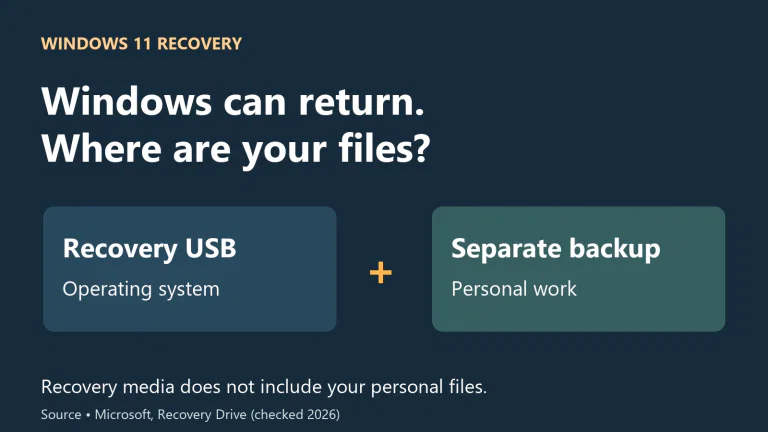
Do not empty either recycle bin while investigating. If this cleanup is preparation for replacing or resetting the PC, also check what Windows Backup actually preserves. A complete cloud document and a recoverable working computer are different outcomes.
Method: Microsoft's current documentation checked on October 30, 2026. The verification steps are a reader procedure; no fresh OneDrive synchronisation benchmark was performed.