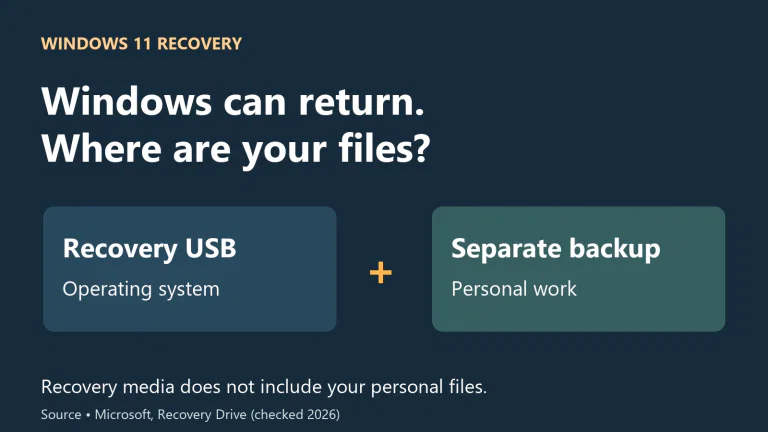

The decision becomes clearer when you separate three jobs: running the computer, keeping a large collection, and protecting files you cannot replace. One device can do the first two. Protecting those files requires another copy that will still be available if the original drive, computer or account fails.
Why an SSD makes a computer feel faster
An HDD stores data magnetically on rotating platters. A read/write head must reach the right location before it can retrieve the data. An SSD stores data in flash memory without that moving mechanism. The difference matters especially when software requests many small pieces of information scattered across a drive.
That is why replacing a mechanical system drive can improve startup, application launches and everyday responsiveness even when you are not copying enormous files. A hard drive may read a large continuous file reasonably well while struggling with the many separate requests involved in starting programs. Intel’s storage guide distinguishes sequential transfers from random access and warns that synthetic benchmark conditions may not represent ordinary use.
Storage cannot fix every slow computer. If the delay occurs while a website waits for a server, a video call struggles with the network, or an application needs more processor power, changing the drive may leave that delay intact. An SSD is the strongest first storage upgrade when the operating system currently runs from an HDD; it is a less convincing explanation for every slowdown on a machine that already uses flash.
Give fast storage to the work that needs it
For a new general-purpose PC, put the operating system and applications on an SSD. Give it enough space for the files and software you expect to use regularly, including room for updates and working files. Start from the space currently used on your computer and the size of the projects or games you intend to add. A universal capacity recommendation ignores too much about those workloads.
Keep a photo or video library on an HDD when affordable capacity is the priority and you mostly open or stream finished files. Working on a large editing project is a different job: importing footage, generating previews and moving between source files can make an SSD valuable. The same video collection can therefore have an active working copy on fast storage and a larger retained collection elsewhere.
A desktop with suitable connections can combine an SSD with a larger HDD. A laptop may have only one replaceable storage slot, or storage that cannot be upgraded internally. In that case, choose enough internal SSD capacity for mobile work and consider an external drive for the larger collection. Buying a second internal drive is useful only if the computer has somewhere to connect and mount it.
There is no obligation to buy an HDD. If your entire collection fits comfortably on an SSD and the price is acceptable, an all-SSD setup is simpler and avoids a spinning drive’s noise and movement sensitivity. The case for an HDD grows with the amount of storage you need and the amount you save by choosing it.
Check the connection and physical size before buying
The word SSD does not identify a single replacement part. A 2.5-inch SATA SSD can replace a compatible 2.5-inch SATA hard drive, subject to the computer’s mounting and connector requirements. A thin M.2 SSD fits a different kind of socket. Neither appearance nor the word M.2 tells you everything about compatibility.
M.2 describes the module format; SATA and PCIe describe different connections, and NVMe is the storage protocol commonly used by PCIe SSDs. Some M.2 sockets support SATA, some PCIe/NVMe, and some both. A module that physically fits is not sufficient evidence that the system can use it. Kingston’s compatibility FAQ also explains the size codes: a 2280 module is 22 mm wide and 80 mm long, whereas 2230 is shorter.
Before ordering, find the service manual or storage specification for the exact laptop or motherboard. Check supported protocol, module length, available mounting space and any restrictions on thickness or cooling. Motherboard slots can also share resources with other connectors; the manual should explain whether installing a drive disables another port. These checks can eliminate a seemingly attractive upgrade before price or performance enters the decision.
For an older machine, a compatible SATA SSD can be a sensible purchase even when faster NVMe models dominate reviews. For a machine with a suitable NVMe slot, compare compatible NVMe options directly. Do not buy an adapter simply to rescue the wrong order without confirming that the system can use the resulting device as intended, especially as a boot drive.
Read speed specifications in the context of your workload
The largest MB/s figure on a listing usually describes a favourable sequential transfer. It is useful for comparing a particular type of work, but it does not say how much faster your computer will start, how quickly every application will open, or how long a complete backup will take. Those jobs involve other components and different patterns of access.
Large repeated writes deserve particular attention. Samsung’s 990 EVO Plus datasheet, for example, states that its advertised write measurements use Intelligent TurboWrite and that the feature operates within a specific data-transfer size. A short burst specification is therefore not a promise of the same rate throughout an arbitrarily large transfer.
If you regularly ingest large video projects or write substantial datasets, look for sustained-write testing of the exact model and capacity, alongside the manufacturer’s thermal and installation requirements. For web browsing, office applications and an ordinary game library, paying a large premium for a higher peak figure can be a poor trade if it leaves you short of usable capacity.
Compare the actual versions being sold. A review of one capacity or a different generation in the same family is less useful than evidence for the drive in your basket. The practical question is whether the additional performance shortens your work enough to justify its price, rather than whether its specification wins a comparison in isolation.
Use the game’s requirements to choose its drive
An SSD is the sensible default for an active PC game library, but the strongest reason can be the game’s own requirement. Bethesda lists 125 GB of available space and an SSD requirement for Starfield in both its minimum and recommended specifications. A larger hard drive does not satisfy that requirement merely because the installation fits.
Games can also use storage differently. Microsoft describes DirectStorage as a way for games to make better use of high-speed storage and reduce the CPU overhead of many small reads. A title must implement the technology; owning an NVMe SSD does not add that implementation to every game.
Choose enough SSD capacity for the games you actually want installed together. An HDD can hold other files or an inactive library that you move back when needed, but include the inconvenience and transfer time in that decision. Do not budget around a promised universal frame-rate increase: the relevant gains may be loading, streaming or meeting a requirement, and the result depends on the game and the rest of the PC.
An external SSD depends on the entire connection
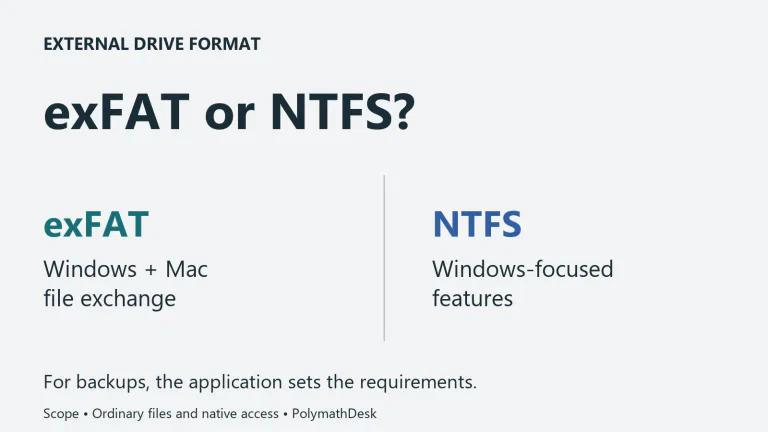
For a portable working drive, an SSD’s small size and lack of a spinning mechanism are useful. For a large backup that stays on a desk, an external HDD may deliver more of the capacity you need for the budget. In either case, check how the external device connects and whether it needs a separate power supply.
An external SSD cannot deliver its full internal capability through an inadequate link. USB-IF identifies 5, 10 and 20 Gbps transfer rates within USB 3.2. The computer port, cable, enclosure and drive must support the intended connection. A USB-C connector describes the plug shape, so verify the specified data rate instead of assuming every matching socket is equally fast.
The other end of a transfer matters too. Copying from an HDD to a fast external SSD still requires the HDD to read the files. A network transfer can be constrained by the network. Compare the complete route for the job you plan to do before paying for a drive whose additional speed the route cannot use.
Compare capacity costs and leave room for another copy
Compare prices for the capacity you actually need, with any enclosure, cable, mounting parts and installation work included. HDDs generally offer a lower cost per unit of bulk storage, but the useful comparison is the current total for suitable products. Old example prices and a sale on an undersized drive can both distort the choice.
For an always-on network storage box, check its approved drives and intended workload. Seagate’s CMR and SMR product list distinguishes recording technologies and their applications. A cheap desktop hard drive is not automatically the appropriate substitute for a model specified for a particular NAS or array. Match the actual product, capacity and system requirements.
A purchase plan also needs a backup budget. If you move the only copy of your photographs from the computer to an external drive and delete the originals, you have relocated the collection. You have not created a second copy. Similarly, keeping two copies on different partitions of the same physical device leaves them dependent on that device.
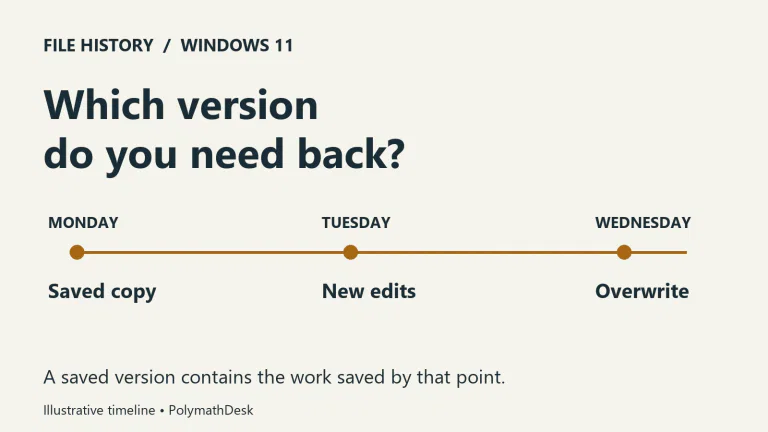
Keep important files in independent locations and maintain a copy isolated from everyday damage or account problems. The CISA-led StopRansomware guide recommends offline, encrypted backups and regular tests of their availability and integrity. A constantly connected second drive can share the consequences of malicious software or an accidental deletion. Test that a backup can restore the files you need.
Cloud exports require the same care. Our iCloud storage guide explains how to retain originals before removing cloud content. Decide where that independent copy will live before using deletion to free the account. The cheapest drive is not a saving if its capacity or your copying plan leaves irreplaceable material unprotected.
Treat endurance ratings as specifications rather than expiry dates
SSDs have write-endurance ratings, while HDDs contain mechanical parts that can wear or suffer damage. Those differences do not establish a guaranteed lifespan for either drive in your home. Reliability also depends on the exact product, its history and its operating conditions; neither type removes the need for backup.
Samsung’s published SSD warranty table lists the 1 TB 990 EVO Plus at five years or 600 TB written, and the 2 TB version at five years or 1,200 TB written, subject to its terms and whichever limit comes first. TBW means total bytes written. It is a warranty endurance boundary, not a timer promising flawless operation until that amount or announcing immediate failure afterwards.
Do not turn that write total into a shelf-life prediction for disconnected files. That is a separate specification question, particularly with a second-hand enterprise drive. Our explanation of enterprise SSD offline retention covers the relevant conditions. Buy such a drive only with an understanding of its connection, history and documented requirements, rather than assuming the enterprise label makes it an effortless home archive.
Plan the move before replacing the system drive
Before opening the computer, make a separate backup and establish whether you will clone the existing system or perform a fresh installation. Cloning aims to carry the current installation across; a fresh installation means reinstalling applications and restoring the files and settings you need. Check the migration tool’s support for your disks and partition layout, and whether the destination has enough space. A larger label on the box is not a complete migration plan.
If the current drive is encrypted, confirm that you can access its recovery information before making changes. Our BitLocker recovery-key guide explains where the matching key may be held. Keep recovery information somewhere you can reach without relying on the drive being replaced.
After migration, confirm that the computer starts from the new drive, important applications work, and your files are present. Keep the old copy intact until those checks and your independent backup are complete. For a current SSD owner who simply needs more room, that larger compatible drive may be the whole upgrade. Add an HDD when its capacity and price solve a separate storage need, and preserve another route to recover whatever you cannot afford to lose.