
For a home Windows PC, a practical starting point is the working files on the computer, a versioned backup on an external drive, and a separately protected offsite backup. The example below turns that arrangement into a recovery plan. It is a planning scenario, not a report of a recovery experiment.
The short answer
Plan the surviving copy
Use the count to find shared failure points, then check the restore route.
- Count independent copiesCount complete copies on independent devices. Two folders on one drive share the same hardware failure.
- Separate the risksKeep one copy outside the property, and protect at least one backup from ordinary deletion or malware on the computer.
- Keep recovery accessRecord how to restore without the original laptop, including credentials, encryption keys and the required application.
Count the files you could actually restore
The UK National Cyber Security Centre describes 3-2-1 as three copies, two devices and one offsite location. Other formulations call for two types of media. The practical purpose is to avoid one failure taking every copy with it. A computer SSD, an external HDD and an offsite service give you different devices and locations; three partitions on the same SSD do not.
The original counts as one of the three. If you move your only photo collection onto a USB drive and erase it from the computer, you still have one copy. A second internal disk can help with failure of the first disk, but both remain exposed to theft of the machine and damage at the same property.
Make a short inventory by folder and application. Include documents, original photographs, videos, project files and any local database you would struggle to recreate. Note the size, location and program needed to use each group. A synchronized shortcut or an online-only placeholder does not contain the complete file. Our OneDrive local-storage guide explains that distinction before you clear downloads.
Do the same for applications that keep their data outside obvious document folders. An accounting export, password-manager recovery kit or editing-project catalogue may matter more than the program installer. Our guide to what Windows Backup saves separates restored settings and app references from the files and application data you must preserve.
Build one small plan before adding more devices
Consider an illustrative household with 600 GB of complete documents and photographs on a laptop SSD. The family accepts losing at most a day of new work in a serious incident, but wants a second route if the cloud account cannot be used. These are chosen requirements; adjust them to your own work.
Working copy — laptop SSD. This is the current collection. Record the exact folders, including any project exports. Keep enough local capacity for the files that the backup software must read; confirm how that software handles online-only items.
Nearby backup — external HDD with versions. Connect it for a scheduled backup, check completion and disconnect it afterwards. In this example that happens weekly, so this copy may be nearly seven days behind. Choose a capacity that accommodates the collection, growth and retained changes. A drive barely larger than 600 GB leaves little room for history.
Offsite backup — a service with a documented restore history. Back up daily and verify that it finished. Choose and check the retention period, deletion policy, encryption and recovery access. Store recovery information somewhere accessible without the laptop. Do not assume that a different service name makes it independent if its login recovery still relies entirely on the same unavailable account.
With this arrangement, the daily offsite copy addresses the one-day target when it is complete and accessible. The weekly drive provides a different, older fallback. If the family needs a one-day recovery point even during an account lockout, weekly local backups are insufficient. Increase their frequency or add a second independently accessible daily destination.
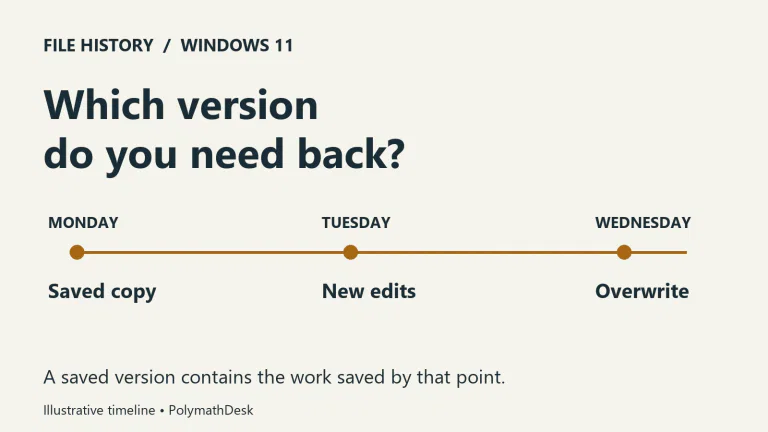
For supported Windows folders, File History can save versions to an external drive or network location. Its library coverage needs checking, especially for custom folders. Use the available restore-to-another-location option when testing; replacing a current folder is a different operation. A successful job for the configured libraries does not prove that an unlisted project folder was included.
Choosing a NAS instead of a USB drive can make shared access and unattended jobs more convenient. It does not remove the need for the separate offsite destination.
Ask which copy survives each incident
Apply the following checks to the example before buying another drive. The answers assume completed jobs, readable media and the access arrangements described above.
The laptop SSD fails. Either backup can supply files. The cloud copy is intended to be newer; the nearby drive may be quicker to access. The useful choice depends on the last successful job and which version you need.
A folder is deleted and the mistake is noticed later. A backup with an older retained version can help. A current mirror that has already copied the deletion may contain no useful copy of that folder. Check the actual history before declaring the incident covered.
Ransomware reaches the laptop. The disconnected drive is outside the computer's current write access while it stays unplugged. An attached drive or writable network share may be exposed. Offsite storage still needs suitable permissions and retained versions. The NCSC explicitly separates the offsite requirement from keeping a backup offline.
The laptop bag is stolen. A drive carried in that same bag can disappear with it. The external drive in this example stays in another place; the offsite copy supplies a further route. Physical separation needs to match the incident, not just a different pocket.
Fire or theft affects the whole property. The offsite backup is the recovery route. A USB drive in a drawer beside the computer does not meet this particular need, even if it is disconnected.
The cloud account is unavailable. The local drive remains useful only if its encryption key and restore process can be accessed independently. Keeping the sole key inside the locked account turns two storage locations into one access dependency.

Write down the route back into the files
A backup inventory needs more than a green status icon. For each destination, record the last successful job, newest recoverable date, oldest retained version, included folders, required software and where the recovery information is held. Do not put passwords or encryption keys in a shared spreadsheet; record where an authorized person can obtain them.
Test a small representative selection into a temporary folder on another suitable device or destination. Open a document, a full-resolution photograph, a video and a real project if those are part of the collection. Check the content and expected date. A file listing alone does not establish that a project still has its dependencies.
Try this while the original is available and can be compared. Then ask what would change if it were absent: where would you install the restore software, sign in, obtain a key and save the recovered data? A recovery code stored only on the original laptop cannot answer that question.
For a large collection, also budget restore time. As an illustrative calculation, downloading 600 GB over a sustained 100 Mbps connection takes about 13.3 hours before overhead: 600 billion bytes multiplied by eight, divided by 100 million bits per second. Real downloads may be slower, and a service may impose additional restore steps. A nearby copy can therefore be valuable even when the offsite backup is newer.
Keep the plan usable as the collection changes
Review backup coverage when you add a computer, move folders, change cloud accounts or begin using a new application. Set a recurring check that you will actually perform. For this household, a monthly sample restore and a review after every storage change would be a reasonable chosen routine; it is not a universal guarantee or a substitute for failed-job alerts.
Use a version-retention period longer than the time it could take you to notice a mistake. If you review an archive every few months, a short recycle-bin window may be over before you realize something is missing. Keep deliberate long-term archives separate from daily working copies where necessary.
Start with the irreplaceable collection and one successful restore. Expand once you can name the surviving copy for each important incident and actually reach it. The next purchase should close a specific gap in that plan, rather than simply increase the number of devices on the desk.