
Before using it, separate three questions: what data will be retained, where Windows will be reinstalled from, and whether a less disruptive repair addresses your problem. Cloud download is an installation-source choice; it does not mean your personal files have been backed up to the cloud.
The short answer
Prepare before you reset
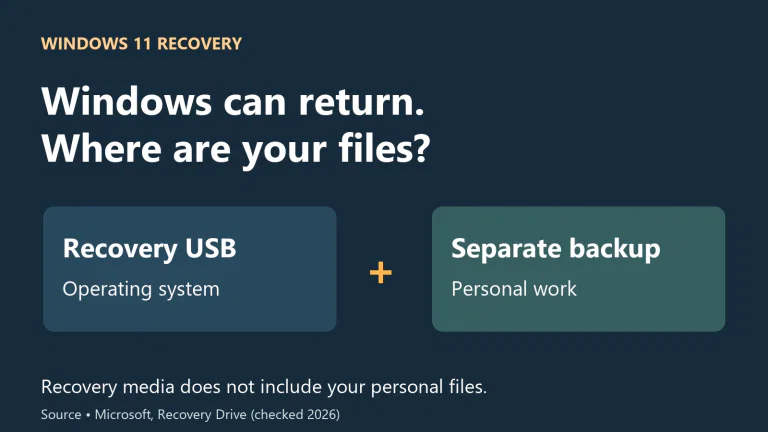
Make the retention decision with a usable recovery route already in place.
- Preserve another copyBack up personal files and export important application data before resetting.
- Separate the choicesKeep my files and Remove everything decide retention; Cloud download and Local reinstall decide the Windows source.
- Consider a repair firstIf you need to preserve installed programs, check the separate Windows Update repair option before choosing a reset.
What stays, what goes and what needs its own check
Microsoft's consumer reset guide describes Keep my files as retaining personal data while removing apps and settings. The practical boundary is that a retained file is not the same thing as a functioning application with all of its state restored.
Personal documents and pictures. Keep my files is designed to retain them; still make a separate verified copy first.
Programs and apps you installed. Expect to reinstall them and regain account or licence access.
Local application data. Export or back it up using that program's documented method; do not infer coverage from the word files.
Manufacturer apps and customisations. They may be restored depending on the device and the preinstalled-apps option.
Drivers and individual Windows settings. Handling varies; prepare to check them afterwards rather than assuming everything is removed or preserved.
The distinction matters for a photo editor, for example. Keeping exported photographs does not establish that its catalogue, presets, plugins and activation are all recoverable. Write down where those separate dependencies are stored and how the application restores them.
Why AppData deserves attention before the reset
Microsoft's technical description of push-button reset identifies user AppData and system application locations among the areas refreshed by Keep my files. It also describes possible access to old application data through Windows.old. That is not a sound substitute for making a supported export before you start.
Do not assume that a game save is safe just because it belongs to your user account, or lost just because the game must be reinstalled. Its location and the game's own cloud-save or export behaviour decide that. Check the specific title or program, then retain a copy you know how to restore.
Likewise, a project on another drive may survive while the software needed to open it does not. A remaining program folder does not establish a working installation. Treat the program and the project as separate dependencies.
Choose retention separately from the Windows source
First decide whether to keep personal files or remove everything. Then choose between Cloud download and Local reinstall. Microsoft describes the former as obtaining Windows from the internet and the latter as using files already on the PC.
Cloud download can be useful when local installation files are damaged, but it does not upload your documents for safekeeping. Local reinstall avoids that Windows download, but it does not retain programs simply because the installation source is local. Neither choice changes the need to back up.

Try the less disruptive repair when it fits the problem
If Windows still starts and the issue concerns system components or failed updates, check Settings → System → Recovery for Fix problems using Windows Update. Microsoft's repair-reinstallation instructions say this reinstalls the current Windows version while preserving apps, files and settings.
This is a different option from Reset this PC. It requires a sufficiently updated Windows 11 installation and may be unavailable on managed devices. Its presence does not prove that it will solve an application-specific problem, but it is worth identifying before accepting the larger disruption of reinstalling your programs.
For a PC that cannot start normally, Quick Machine Recovery addresses another, narrower repair situation. Do not treat every item containing the word recovery as an interchangeable way of preserving the same data.
Prepare the things a retained document cannot replace
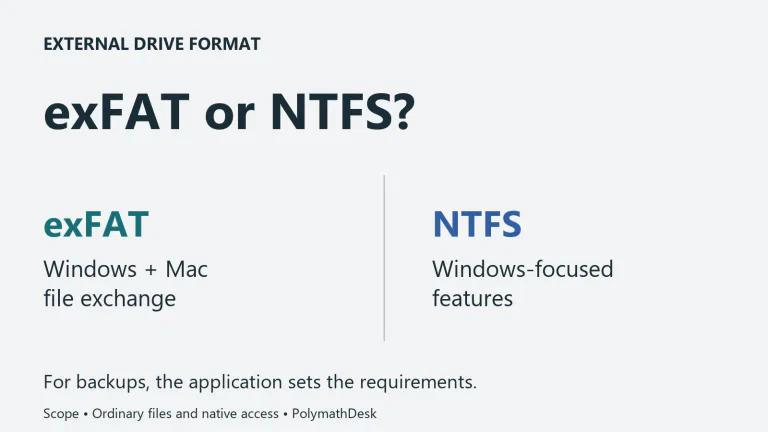
Make an independent file copy. Use an external drive or another verified destination. Microsoft's file-transfer instructions include checking the copied files. Open important examples at the destination and confirm their versions before relying on them.
Check application-specific recovery. Export local databases, record required installers and confirm licence or account access. For a project with linked media, verify the dependencies as well as the main project file. Our Windows Backup checklist separates those tasks from restoring an app list.
Check online-only files. A OneDrive placeholder is not a complete offline copy. If the backup is meant to remain usable without that cloud account or connection, download and verify the contents before copying them.
Locate the encryption key. If BitLocker or device encryption is enabled, have the matching recovery key available on another trusted device or offline record. Follow the BitLocker recovery-key guide to match the Key ID. Keep my files is not a way around encryption, and a Windows PIN cannot substitute for the recovery key.
Prepare access after the reset. Know how to reach your important accounts and obtain your device manufacturer's network driver if necessary. Keep the backup drive disconnected during the reset once its contents have been checked, unless your chosen recovery procedure explicitly needs it.
Start the right reset and review its final summary
In Windows 11, open Settings → System → Recovery → Reset PC, then select Keep my files. Choose the installation source and review the additional settings and final summary. Where offered, open the list of apps that will be removed and retain it outside the PC.
ASUS's illustrated reset instructions show the removed-apps review and the optional restoration of preinstalled software. Those screens help explain the decision, but manufacturer customisations and Windows versions can change the wording.
If you are in the recovery environment, the route is Troubleshoot → Reset this PC → Keep my files. System Restore is a separate recovery tool, not the next step in that sequence. Microsoft's Windows RE guide describes ways to reach the environment, including holding Shift while selecting Restart when that menu is accessible.
Keep the PC connected to power. A black screen and automatic restarts can occur during a reset; do not interrupt it just because the display appears inactive. If it reports a failure, retain the error details and check the relevant recovery guidance rather than repeatedly starting different destructive options.
Afterwards, verify work rather than just the desktop
Check Windows Update and Device Manager, reinstall the programs you need, and restore their data through supported procedures. Open several important files, including a recently changed one. For each application that matters, complete a small real task on a copy of the data before deciding that recovery is finished.
Keep the independent backup until those checks pass. If you discover missing local data, do not assume Windows.old or a newly enabled cloud backup will recreate it. Start with the copy or export made before the reset, and avoid overwriting the remaining evidence.
Method: Microsoft and ASUS documentation checked on October 30, 2026. Microsoft's technical reset description is older than its current consumer guide, so device-specific details are qualified. No reset was performed on a reader's or the author's working PC for this article.