
This guide is for keeping ordinary files you own on a Windows PC while removing their OneDrive copies. If your aim is the opposite—saving laptop space while keeping files online—use our OneDrive Free up space guide.
The important checkpoint is the destination: can you open a complete file from a location that OneDrive does not sync? A familiar filename in File Explorer is not enough.
Choose which copy you actually want to remove
Microsoft distinguishes removing an item from OneDrive, from the computer, or from both. Choose the outcome before using a deletion command.
| Your goal | Appropriate starting point | What to verify |
|---|---|---|
| Keep a PC copy and remove the cloud item | Copy outside OneDrive, verify, then remove the synced original | The independent destination opens correctly |
| Keep the cloud item and save PC disk space | Free up space | The item remains available online |
| Keep syncing, with files available offline | Always keep on this device | Downloads have finished; deletion still syncs |
| Stop using OneDrive on this PC | Verify local copies, then consider unlinking | Cloud-only files have not been mistaken for downloads |
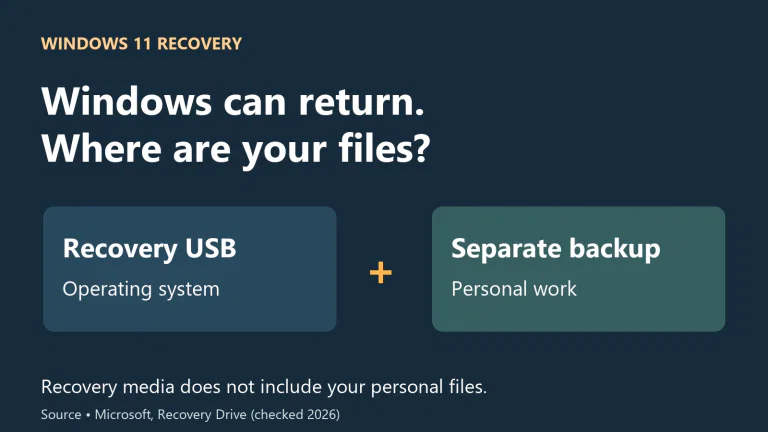
For irreplaceable material, make another backup before reducing the number of copies. A cloud copy removed after an export leaves the export carrying more responsibility. Our 3-2-1 backup guide explains how to separate those failure risks.
Download the files before relying on a local copy
Open the correct OneDrive folder in File Explorer. If you use personal and work accounts, identify which account owns the items. Finish editing and save your files before copying them.
An online-only item can appear in the folder without containing the full file locally. Right-click the items you need and select Always keep on this device, then wait for downloading to finish and resolve any errors. Microsoft explains the availability states in its Files On-Demand instructions.
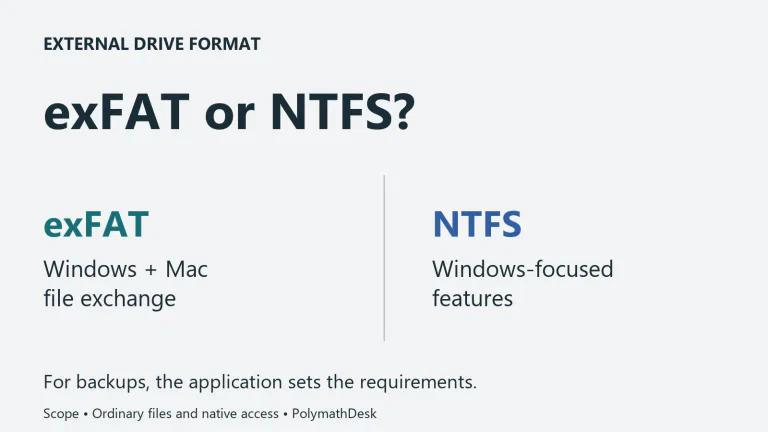
Check available destination space first. For a large collection, work in manageable groups rather than starting an unexplained bulk operation. If the PC cannot hold the files, use a suitable external drive and verify it before removing any source.
You can also download owned files from the OneDrive website. Multiple selected items may arrive in a ZIP: extract the download into your intended destination and check the extracted files. A completed browser download is not, by itself, a check of everything you intended to keep. OneNote notebooks are an important exception: Microsoft says a folder download can contain a text error message instead of the notebook. Use the application's supported export or backup method for notebooks and other application-managed data. Some work or school content may have downloading restricted; ask its owner or administrator rather than trying to bypass that restriction.
Copy to a destination outside the syncing folder
Create a clearly named folder outside every OneDrive location you use. For example, a folder directly under your Windows user profile named LocalOnlyCopies can be easier to distinguish than another folder called Documents. Check the actual path; do not rely on the name alone.
Desktop, Documents and Pictures are not automatically safe destinations. They may themselves be included in OneDrive folder backup.
Use Copy, open the independent destination, then Paste. Leave the originals in place while you check the result. Microsoft also documents moving files outside OneDrive to retain them on the computer; the copy-first sequence here gives you a verification point before the synced source is removed.
Do not choose a shortcut to a file or a shared-folder shortcut as your archive. You need the contents, not a link that still depends on the original location.
Check the retained files before deleting anything
Start with a small group that you can inspect. In the destination:
- Confirm the folder path is outside OneDrive and any other syncing location.
- Compare the intended files and subfolders with what actually arrived. Investigate skipped items or copy errors.
- Open the destination files directly, rather than using an application's recent-file list, which could reopen the original.
- Disconnect from the internet temporarily and check that the important retained files still open. Reconnect before continuing with OneDrive.
For a project, inspect more than its main document. A presentation may use linked images; a video project may refer to media stored elsewhere. Successfully opening one file does not establish that every dependency was copied.
If something is missing, stop at this point. Keep the source and correct the export. The result you need is usable independent files, not merely a successful copy notification.
Remove only the verified OneDrive originals
Once the destination checks pass, select the corresponding originals in the correct OneDrive account and delete those items. Begin with the small group you verified. Let synchronization complete. Check that those same items are absent from the active folder on the OneDrive website, then reopen the retained files from the independent destination. Reaching the cloud recycle bin is different from permanently erasing every recoverable copy.
Removing a synced original can remove that synced item on other devices too. It should not be confused with removing your new, separate copy. Deleting an item that others use can also affect their access; this procedure is not a way to reorganize team-owned material without agreement.
Cloud-storage usage may not fall immediately. Microsoft says the storage calculation can lag deletion and removal from the OneDrive recycle bin. Emptying that bin permanently removes a recovery route: do not use it as the first troubleshooting step, or purge unrelated files. Recheck your retained copy and backup before making any permanent-deletion decision.
When you want to stop backing up Desktop or Documents
Moving a few files and stopping backup for an entire Windows folder are different changes. In OneDrive settings, open Sync and backup, then Manage backup. Microsoft's current Windows guidance describes a choice to keep the files on the PC or in OneDrive when stopping a folder's backup. Read the actual choice offered before confirming it; cloud-only items may need downloading first. The labels and available choices can vary.
Do not change the whole folder's backup just to export a few files. For a broader PC move, check what Windows Backup saves before assuming that all applications and working data are protected elsewhere.
Why unlinking alone does not finish the job
Unlinking or uninstalling OneDrive does not delete the online collection. It also does not turn every online-only placeholder into a downloaded archive. If your objective is cloud removal, unlinking alone leaves that objective unfinished.
Keep the distinction between a disconnection and an independent copy. The latter is what you can inspect and open from its own destination, without depending on the original OneDrive folder or account.
Method: this is a document-based Windows procedure using Microsoft guidance checked on November 6, 2026. We did not delete or migrate a reader's OneDrive files, or perform a fresh cloud-sync experiment.