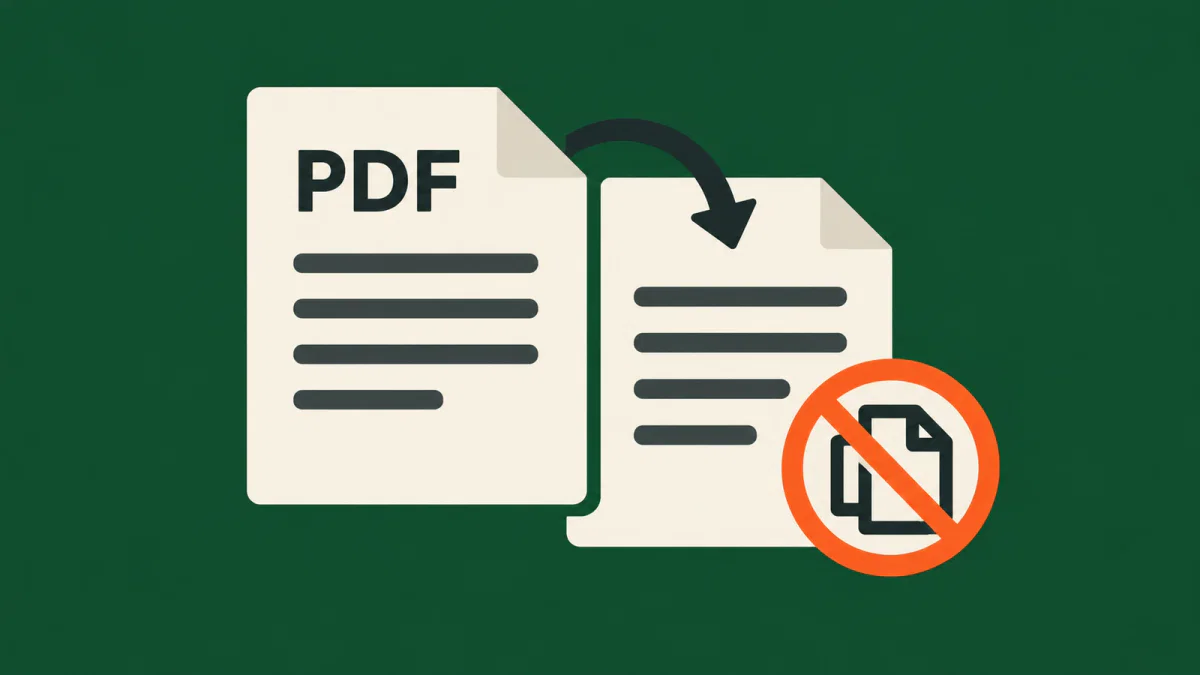
That combination matters when you export a report and assume the “disable copying” setting keeps its text confidential. The permissions password and the document-open password do different jobs. Our test compares those jobs using four files made from the same harmless page.
Adobe’s password overview distinguishes a Document Open Password, required to view a file, from a Permissions Password, which governs actions such as printing, editing and copying. A file that opens freely can still contain the second type of protection.
Four files with identical page contents
We used pypdf 6.10.0 with cryptography 50.0.1 on Python 3.12.14 for Windows. ReportLab 4.4.9 created the original page. It contained an obvious public demonstration sentence, no customer information. All three encrypted exports explicitly used AES-256 and the same nonempty owner password. We varied the user password and ordinary text-copying permission; accessibility permissions stayed enabled.
The unencrypted control yielded its text immediately. So did the permissions-only file: it had an empty user password and copying disabled. The open-password file and the file with both settings refused text extraction until a valid password was supplied. Those two files also rejected our empty and incorrect passwords.
After the valid user password was supplied, pypdf extracted the sentence from both open-password files, including the one with copying disabled. The known owner password also recovered the text in every encrypted case. Our 35 assertions checked these outcomes, encryption flags, permission flags and authentication results.

The reader already has the text
The qpdf encryption manual explains why encryption and a required password are separate. With PDF’s standard password handler, either the user password or the owner password can recover the encryption key. An empty user password can let a reader obtain that key automatically, without asking the person opening the file to enter anything.
The copying restriction remains a rule for the application to enforce. Software that honours it may disable a copy command when the file is opened as a user. But software able to decrypt the content already has access to that content. Our extraction result did not involve cracking AES, guessing the owner password or finding a new vulnerability.
A pypdf maintainer discussion explicitly describes the library extracting text without enforcing these restrictions. Our test verifies that behaviour on current files we created ourselves. We did not test Acrobat’s copy menu, and the result does not mean every PDF viewer ignores permissions.
This also sets the boundary for an open password. It prevented initial access in our test. Once an authorised recipient has opened the file, it does not make the displayed words impossible to reproduce. Confidentiality before opening and control over an already-readable document need separate checks.
Reproduce the permissions-only result
Make a harmless, text-based PDF of your own called demo.pdf. The following example uses the pypdf 6.10.0 encryption API to clear the ordinary extraction permission while leaving the other flags set. The owner password below is public demonstration data; it is unsuitable for a real document. AES support requires an installed cryptographic backend, as described in pypdf’s encryption documentation.
from pypdf import PdfReader
from pypdf import PdfWriter
from pypdf.constants import (
    UserAccessPermissions as P,
)

bits = 4294967292 & ~int(P.EXTRACT)
permissions = P(bits)
owner = "PUBLIC-DEMO-OWNER-ONLY-2026"
output = "permissions-only.pdf"
writer = PdfWriter(
    clone_from="demo.pdf"
)
writer.encrypt(
    user_password="",
    owner_password=owner,
    permissions_flag=permissions,
    algorithm="AES-256",
)
writer.write(output)

fresh = PdfReader(output)
print(fresh.is_encrypted)  # True
flags = (
    fresh.user_access_permissions
)
print(bool(flags & P.EXTRACT))
# False
print(fresh.pages[0].extract_text())
# Text from your demo page
To check the other two encrypted cases, export new files with a nonempty user password, first allowing copying and then disallowing it. Open each with a fresh reader before attempting extraction. Check again with the known password. Keep the original control separate so that rewriting an existing file cannot disguise which settings produced the outcome.
One detail initially caught us out: in the permissions-only case, calling decrypt with an incorrect password returned a failed authentication result, yet text remained available. PdfReader had already opened that file using its empty user password. The later failed call did not take away access it already had. We corrected that mistaken test assumption and reran the fixture; the final 35 checks passed.
A failed password return value therefore cannot, on its own, prove that contents are inaccessible. Neither can is_encrypted=True. Test the operation you actually need to block in a fresh reader, before supplying credentials, and inspect the resulting content rather than just the status flag.
Check the export from the receiving side
If the requirement is to keep a report unreadable before authentication, check that the exported file requires a nonempty open password. Use a harmless sample in the recipient’s actual software and test it before entering credentials. Then confirm that the intended recipient can recover the complete document after authentication. A greyed-out copy command answers a different question.
The same distinction between a setting’s name and its actual scope appears in our encrypted ZIP filename test: protecting document contents did not automatically hide the archive’s file list. Here the object being tested is the text inside a PDF, and the issue is software-enforced permissions after the content becomes readable.
For retained documents, keep credentials and recovery software available along with the file. Our explanation of offline SSD retention covers another part of that recovery problem: a file’s present usability says little about whether the stored copy will remain readable later. These are separate requirements, not a single “protected” checkbox.
Our test covers ordinary text in four self-created PDFs and one extraction library. It does not assess digital signatures, certificate-based controls, managed document systems, redaction, scanned pages or cryptographic strength. Removing information needs its own verification: our transparent PNG test shows how making content invisible can leave its original pixel values in the delivered file. Neither a visibility change nor a copying restriction proves that information has been removed.