
USB-C connections · Tech
Charging can work while the video path is missing
Use the cable specification to separate a power connection from a supported display connection.
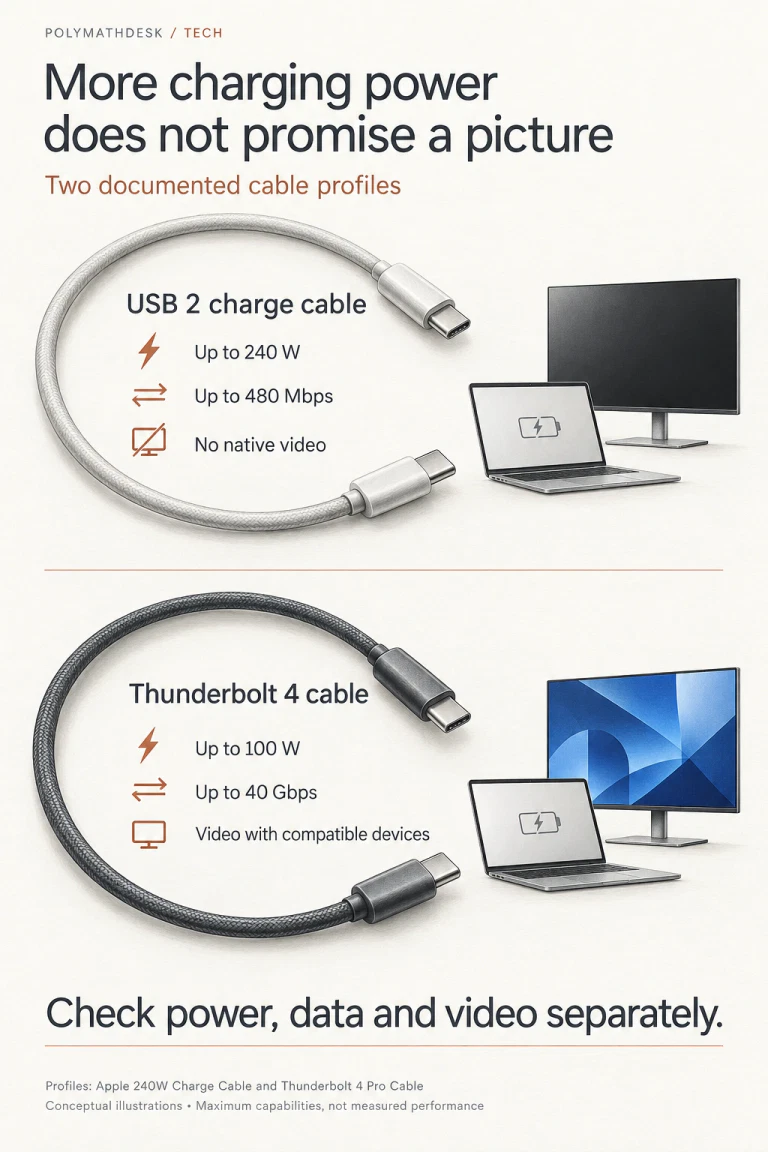
- 240 W does not promise videoApple’s 240W USB-C Charge Cable carries USB 2 data; its charge-cable comparison explicitly excludes video.
- A lower power rating can accompany display supportApple’s Thunderbolt 4 Pro Cable supports video and up to 40 Gbps data with a maximum power rating of 100 W.
- Check the whole connectionA suitable cable cannot add display output to a port or make an unsupported display mode work.
You replace the short lead supplied with a USB-C monitor with a longer cable advertised for 240 W. The laptop shows that it is charging. The screen stays black. The tempting diagnosis is that the display settings or graphics driver must be wrong: surely a cable powerful enough for a laptop can carry a picture.
That conclusion does not follow. Power, USB data and native display transport are separate capabilities. A cable can do its advertised charging job correctly and still be the wrong connection for the monitor. The useful starting point is the exact cable model, rather than the largest number printed beside it.
The 240 W cable loses this particular comparison
Apple’s 2 m 240W USB-C Charge Cable makes the distinction unusually easy to verify. Its product page promises charging up to 240 W and data transfer at USB 2 rates. Apple’s Thunderbolt Pro cable support document states that the USB-C Charge Cable is limited to 480 Mbps and does not support video.
The same support document describes the Thunderbolt 4 Pro Cable with up to 40 Gbps over supported Thunderbolt or USB4 connections, DisplayPort HBR3 video and a maximum of 100 W. These are documented capabilities, not results from a test performed for this article.
Manufacturer specifications
The power rating does not rank display capability
| Cable | Power | Data | Native video |
|---|---|---|---|
| Apple 240W USB-C Charge Cable, 2 m | Up to 240 W | USB 2, up to 480 Mbps | Not supported |
| Apple Thunderbolt 4 Pro Cable | Up to 100 W | Up to 40 Gbps with supported protocols | Supported with compatible devices |
The comparison defeats a ranking by watts. It does not establish that all 240 W cables lack video, or that every 100 W cable supports it. A rating describes one capability of one product. Neither price nor the USB-C connector shape fills in the missing specifications.
USB 2 wiring does not become a display link
USB-IF’s Type-C language and packaging guidelines describe a USB 2.0 Type-C cable that supports USB 2 data and can support Power Delivery, but has neither USB 3.2/USB4 nor Alternate Mode capabilities. The document identifies the omitted high-speed transmit/receive and sideband signals. This is a physical capability distinction, not a hidden operating-system switch.
In VESA’s explanation of DisplayPort Alternate Mode, video uses some or all of the high-speed signal lanes in the USB-C connection. USB 2 has a separate path. Consequently, seeing a low-speed peripheral work through a compatible display or dock does not demonstrate that its native video path is available.
This also explains why “it transfers files” is too weak a cable test. A USB 2 transfer can establish that USB 2 works. It cannot establish that the additional paths required by a different transport exist. Conversely, a cable capable of faster operation remains limited by the supported host, peripheral and negotiated connection.
The wattage marking answers a different question
Under the USB-IF cable certification requirements, USB-C to USB-C cables carry a 60 W or 240 W power marking. Faster-than-USB-2 cables must also indicate their supported data rate. High-Speed USB, meaning USB 2, is the exception: the power mark is required, while the USB 2 or High-Speed logo is optional.
USB Power Delivery also concerns negotiation between devices. A 240 W cable does not force 240 W into a phone or promise that a monitor will supply that amount. The source and receiving device must support the relevant power arrangement. A battery icon confirms some successful power behavior, not the cable’s maximum rating or a working picture.
Change one part of the monitor connection
Consider the original desk scenario as a hypothetical troubleshooting exercise. Keep the same laptop port, monitor input and display settings. Put back the monitor’s supplied, documented video cable. If the picture returns, the substitute cable becomes a strong lead. That observation alone still does not identify whether it lacks the capability or has a fault.
Microsoft’s Surface USB-C troubleshooting guidance recommends using the device’s supplied cable and checking feature support. Its instructions apply to Surface; the following sequence combines that bounded advice with the cable and standards evidence above.
- Identify the replacement lead. Find its exact product page. Record the data protocol and explicit display support separately from watts. A USB 2-only specification already answers the native-video question.
- Check the actual laptop port and monitor input. Use the manuals for those models. Matching connectors do not establish matching display capabilities, and another port on the same computer may have a different role.
- Return to a documented direct connection. Where the devices support it, use the supplied video cable without an extra hub or adapter. Keep other settings fixed so that the substitution gives useful evidence.
- Check the requested display mode. If a supported connection produces a picture but not the intended resolution or refresh rate, investigate the complete mode support. Increasing the cable’s wattage is not a remedy for a video-bandwidth limit.
A useful result is specific: “the original cable works on this port at this mode; the replacement is documented as USB 2 only.” “USB-C is broken” throws away the evidence needed to select a suitable replacement.
Keep native video separate from USB graphics adapters
This explanation concerns native USB-C display connections, including DisplayPort Alt Mode and supported Thunderbolt paths. A USB graphics adapter that transports graphics through ordinary USB data with its own software is a different arrangement. Do not use the cable comparison to diagnose every possible dock architecture.
Likewise, 40 Gbps is a connection capability, not a promise of 5 gigabytes per second in a file-copy dialog. The protocol in use and the equipment at both ends matter. For an external SSD, this connection question is also separate from whether the drive is suitable for an offline backup.
Questions about a charging cable and a blank screen
Does every 240 W cable lack video?
No. The example is a particular USB 2 charge cable. Other cables can combine high power capability with a supported display transport. Read the complete specification.
Will the Thunderbolt 4 cable make any USB-C port output video?
No. A cable does not add missing capabilities to the host or display. Check the device manuals and the supported connection and display mode.
Manufacturer documents and interface standards
Seven primary sources checked 12 September 2026
This article compares published capabilities. No hands-on cable benchmark, electrical measurement or universal buying recommendation is claimed.