
This is useful after recovering an older CSV export, Markdown note or configuration file. Replacing the current copy immediately can fix one mistake while discarding useful newer work. If you have not recovered the older version yet, follow our guide to restoring a file with File History to a separate location.
Open the comparison without replacing either copy
Use the desktop version of Visual Studio Code. These steps were checked in VS Code 1.139.1 on Windows with extensions disabled, using small files created for this article.
- Open the older copy
Choose File → Open File, or press Ctrl+O. Open
restored.csvas a normal editor tab. Keepcurrent.csvat its separate path. - Choose the comparison command
Press Ctrl+Shift+P. Search for
File: Compare Active File With...and select that command. The clipboard and saved-file commands answer different questions. - Select the current copy
Choose
current.csvin the file picker. If its name is not listed, paste its full path, select the matching result and press Enter. Check the two filenames in the comparison tab before interpreting the result.

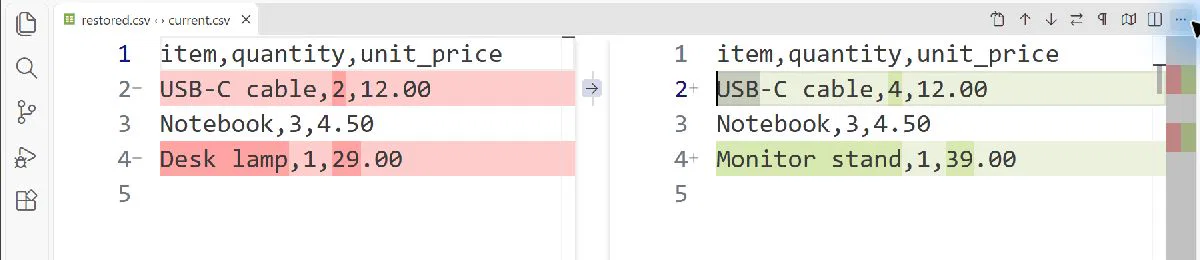
In the tested sequence, restored.csv became the left-hand reference and current.csv the right-hand file. On a narrow editor, VS Code displayed the changes in one column instead. Widen the editor or hide a sidebar for more room; the current documentation also describes layout choices under More Actions (…) → Diff View. VS Code’s comparison instructions and diff layout guidance explain the available routes.
If the files already appear in VS Code’s Explorer, another route is to right-click the older one and choose Select for Compare, then right-click the current one and choose Compare with Selected. You are selecting a reference, not marking a version as correct.
Worked example: what changed in a purchase list?
The screenshot above the article shows our actual comparison of two deliberately small CSV files. The names, quantities and prices are illustrative test data; neither file came from a real backup or purchase record.
To reproduce it, save this text as restored.csv:
item,quantity,unit_price
USB-C cable,2,12.00
Notebook,3,4.50
Desk lamp,1,29.00
Save this second block as current.csv in a separate file:
item,quantity,unit_price
USB-C cable,4,12.00
Notebook,3,4.50
Monitor stand,1,39.00
The comparison highlights the quantity on the cable row, leaves the notebook row unchanged, and pairs the lamp row with the stand row as a changed block. Read the values rather than relying only on the background colors.
| What changed | Older → current | Decision to check |
|---|---|---|
| Cable quantity | 2 → 4 | Was the extra quantity intentional? |
| Notebook row | 3 at 4.50 → unchanged | No content difference on this row. |
| Item on the last row | Desk lamp at 29.00 → Monitor stand at 39.00 | Was one item removed and another added, or was the row overwritten by mistake? |
That last question is the important limitation. A text comparison identifies where the strings differ; it does not know what a purchase represents. Here, the row pairing is not evidence that somebody renamed a lamp. In a larger export, a changed sort order can also produce many changed lines even when the underlying records are the same.
For an actual reconciliation, look for a stable item or record ID. If the question is about totals, formulas or records moving between rows, use a spreadsheet or data tool that understands those structures. A CSV text diff is a quick inspection, not a substitute for that check.
Check the whitespace setting before accepting an empty diff
For a second test, we created two text files containing delivery=Friday. The second file had two spaces after Friday; the first had none. Both used UTF-8 encoding and LF line endings.
With diffEditor.ignoreTrimWhitespace set to true, the comparison showed the same visible words without colored change blocks. It also offered a Show Whitespace Differences button. This behavior is documented by the VS Code team’s diff editor notes.

In the tested version, the toolbar control was labelled Show Leading/Trailing Whitespace Differences. Turning it on revealed the changed line. Setting Editor: Render Whitespace to all also made the two spaces visible as dots. These controls have separate jobs: one changes which differences are considered, while the other changes how whitespace characters are drawn.

To reproduce that case, save delivery=Friday in two text files and add two ordinary spaces at the end of the line in only one. Make sure an automatic formatting or trimming rule does not remove them when you save. Compare the files, then change the whitespace-difference setting. Do not type literal dots into the file: the dots in the screenshot are display markers.
An empty visual diff is therefore narrower evidence than “these files are identical.” It describes the text comparison under the current settings. If you need to verify an exact file copy, compare content hashes instead; PowerShell’s Get-FileHash documentation describes that separate check.
Keep the review separate from the edit
Suppose the cable increase was correct but deleting the lamp was a mistake. Restoring the entire older file would bring the lamp back and lose the increased cable quantity. Start a third file from the current copy, restore only the missing lamp record, then compare that result with both originals. This is a proposed next step, not an additional merge performed in our test.
Preserve the originals until the combined file opens correctly in the application that uses it. If the copies originated in OneDrive, first confirm which location holds your independent local copy outside OneDrive. A comparison does not create another backup or change how a synced folder behaves.
A shortcut if you already use the command line
When the code launcher is available in your terminal, pass the reference file first and the current file second:
code --diff "C:\File-review\restored.csv" "C:\File-review\current.csv"
Replace those example paths with your own. We also used the desktop app’s --diff launch option to check the same CSV pair. If your terminal does not recognize code, use the interface steps above; the comparison itself does not require a terminal. The official command-line reference documents the two-file option.
Use this workflow for text you can meaningfully read as text: CSV exports, Markdown, JSON or configuration files. For a formatted Word document, Excel workbook or PDF, use a comparison tool that understands that format. The presence of a diff window alone does not prove that the document’s layout, formulas or embedded content were compared.
What was actually tested
On 8 November 2026, we opened four locally created test files in VS Code 1.139.1 on Windows, with extensions disabled. We checked the CSV pair through the app’s diff launch option and through the Command Palette with a full path to the second file. We then compared the whitespace-only pair before and after changing the display settings. The files remained unchanged, checked against the expected input bytes after closing the editor.
The screenshots are captures of that running application, cropped where noted for readability. They are not generated interface illustrations. The examples demonstrate text comparison; they do not report a File History recovery, a test of large datasets or an automatic merge. A retained older version is useful only when you can find the content you need in it, which is why a backup plan should include a restore check.